Mac trackpad gestures: the full list for macOS 26, and how to add more
Published November 15, 2026 · By the Qesture team · macOS 26 and later
A Mac trackpad knows more gestures than most people use. Some are on from the start, some are one setting away, and a few compete for the same fingers. Here is every gesture, where it lives in System Settings, and the extra gestures Qesture adds.
Every trackpad gesture
System Settings → Trackpad holds three groups of gestures. Dragging has its own setting under Accessibility.
| Gesture | What it does | Where it's set |
|---|---|---|
| Tap to click | A tap with one finger clicks. | Trackpad → Point & Click |
| Secondary click | Click or tap with two fingers, or click in the bottom right or bottom left corner if you set that instead. | Trackpad → Point & Click |
| Look up & data detectors | Force Click with one finger, or tap with three fingers, to look up a word and get quick tasks for dates and addresses. | Trackpad → Point & Click |
| Force Click and haptic feedback | Click, then press firmly, for Quick Look, Look up and variable-speed media controls. It needs a Force Touch trackpad. | Trackpad → Point & Click |
| Click | Sets how firmly you press: Light, Medium or Firm. Quiet Click makes clicks quieter. | Trackpad → Point & Click |
| Natural scrolling | Content follows your fingers. Scroll by sliding two fingers. | Trackpad → Scroll & Zoom |
| Zoom in or out | Pinch with two fingers. | Trackpad → Scroll & Zoom |
| Smart zoom | Double-tap with two fingers. | Trackpad → Scroll & Zoom |
| Rotate | Rotate two fingers. | Trackpad → Scroll & Zoom |
| Swipe between pages | Scroll left or right with two fingers, swipe with three fingers, or either. | Trackpad → More Gestures |
| Swipe between full-screen applications | Swipe left or right with three or four fingers. | Trackpad → More Gestures |
| Notification Center | Swipe left from the right edge with two fingers. | Trackpad → More Gestures |
| Mission Control | Swipe up with three or four fingers. | Trackpad → More Gestures |
| App Exposé | Swipe down with three or four fingers. | Trackpad → More Gestures |
| Apps | Pinch with your thumb and three fingers. | Trackpad → More Gestures |
| Show Desktop | Spread your thumb and three fingers. | Trackpad → More Gestures |
| Three finger drag | Drag what is under the pointer with three fingers. | Accessibility → Pointer Control → Trackpad Options… |
When two gestures want the same fingers
Each finger count and direction can do one thing. Where a setting offers three or four fingers, the count you do not pick stays free for another gesture.
Three-finger drag changes what three fingers mean. With it on, three fingers become a dragging hand, so give Mission Control, App Exposé and the page and full-screen swipes to two or four fingers in Trackpad → More Gestures.
More gestures with Qesture
Qesture adds gestures for jobs macOS leaves to menus and keys. You turn each one on in Qesture's Settings:
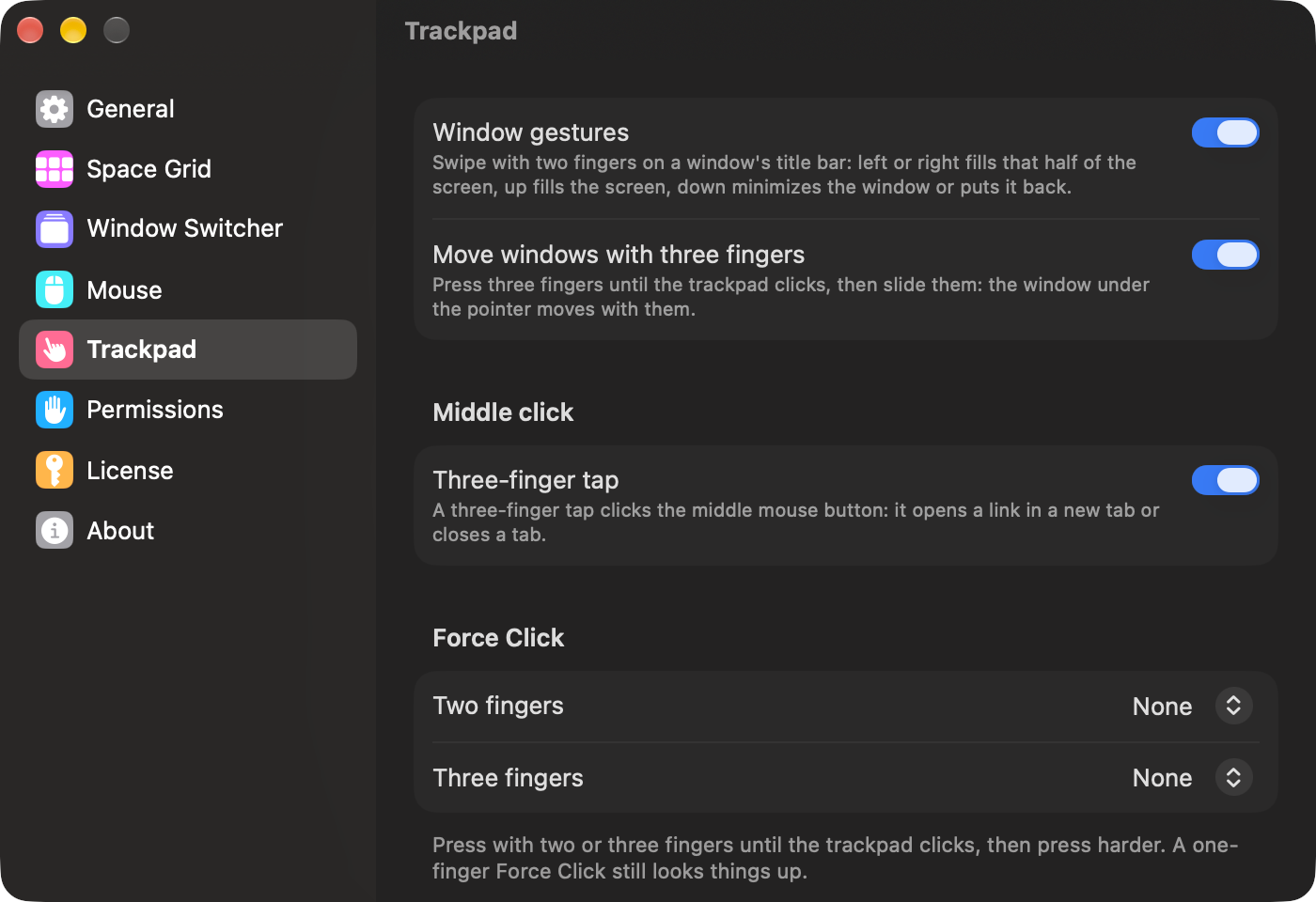
- Three-finger tap for a middle click. See middle click on a Mac trackpad.
- A quick three-finger swipe left or right goes to the next window; hold still for the switcher. See switching between windows.
- A two-finger swipe on a title bar fills half or all the screen; swipe down to minimize. See moving and tiling windows.
- Press three fingers until the click, then slide, to move the window under the pointer. See moving and tiling windows.
- A four-finger swipe up or down jumps a row of desktops, if you give that swipe to Space Grid; hold four fingers still to pick any desktop. See Mac Spaces in a grid.
- A five-finger rest opens a ring of apps and actions. See opening apps faster.
- Force Click with two or three fingers runs one action each. See what Force Click does.
Qesture's setup window checks for conflicts: a Look up tap cannot be a middle click, and while the window switcher's swipe is on, macOS's three-finger swipes need two or four fingers and three-finger drag has to be off. It also asks whether the four-finger swipes up and down stay with Mission Control and App Exposé, and each check has a button that opens the setting.
Questions
How do I change a gesture's finger count?
Open System Settings → Trackpad and pick the group. Swipes between pages and between full-screen apps each offer a choice, and the count you leave alone can go to another gesture.
What happens when two gestures use the same fingers?
Only one can win. A tap set to Look up cannot be a middle click, and three fingers that drag cannot swipe between windows. The paragraphs above name the settings that settle each case.