How to open apps faster on a Mac
Published November 15, 2026 · By the Qesture team · macOS 26 and later
Opening an app is a small job you do many times a day. A key combination, a click in the Dock or a gesture each save a second, and the fastest one is the one your hands already know. Here is what macOS 26 offers, and how Qesture's ring of apps fits in.
Open apps with Spotlight
Open Spotlight with ⌘ Space, start typing, and Return opens the top match. On macOS 26 Spotlight also keeps a list of every application: press ⌘ 1 while it's open, so a name you cannot remember is still a short list away.
Open apps from the Dock
Click an app's icon in the Dock to open it. To keep an app there, drag it to the Dock. If it's already running, Control-click its Dock icon and pick Keep in Dock from the Options submenu. A kept app stays after you quit it, so the click is always in the same place.
Open apps from Apps
Apps replaced Launchpad in macOS 26 and took over its spot in the Dock. On a trackpad, bring it up by pinching your thumb together with three fingers (Trackpad → More Gestures → Apps). It can show apps in a grid or a list, sorted into categories, but you can't arrange it into pages or folders of your own.
Open apps from the Applications folder
In Finder, choose Go → Applications, or press ⇧ ⌘ A. The folder opens in Finder, and you can drag an app from it to the Dock to keep it there.
Open apps with five fingers in Qesture
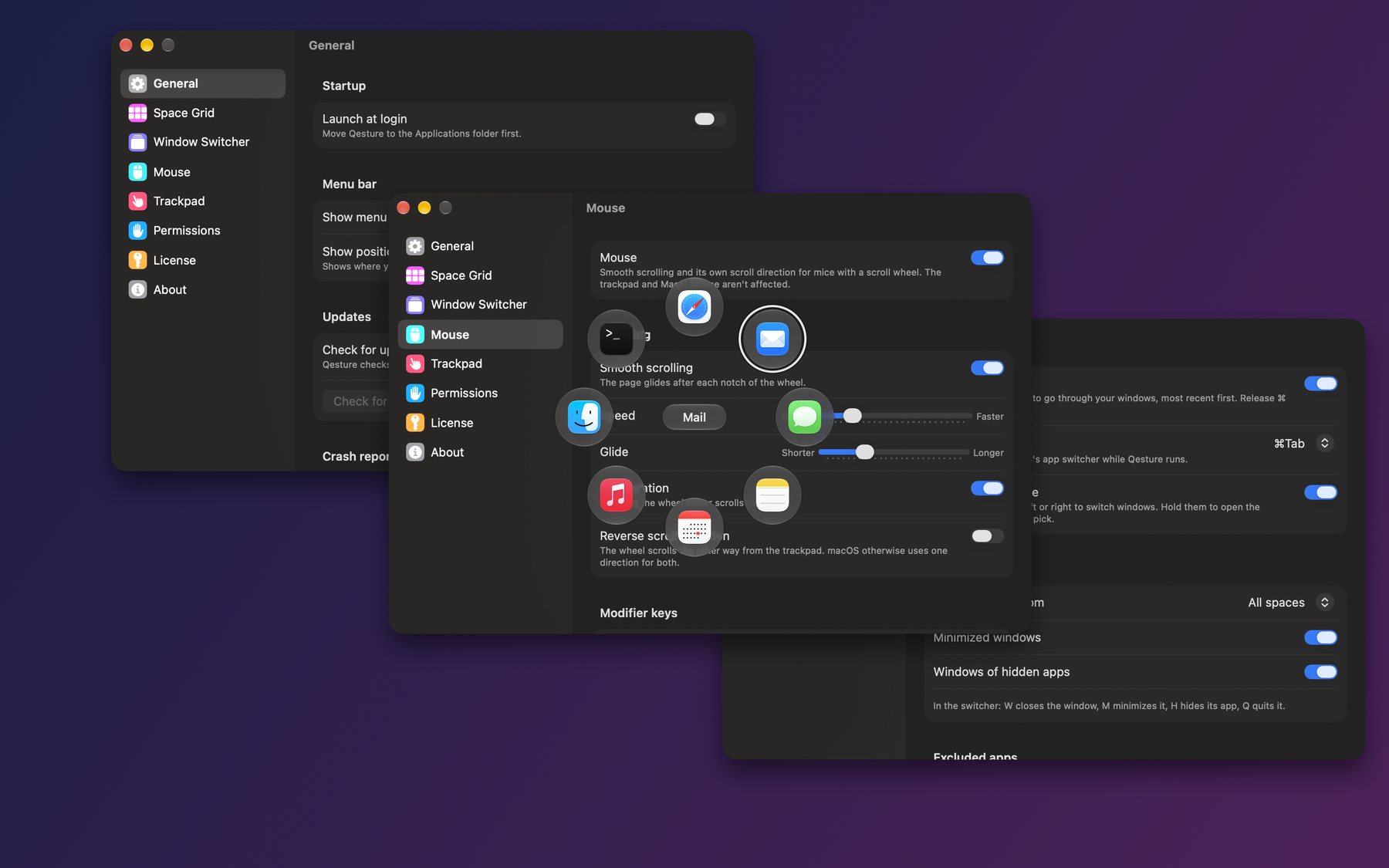
Five fingers resting on the trackpad bring up a ring of apps around the pointer. Eight places hold your recent apps by default, followed by Dock apps. Slide toward a place and lift to open it, or lift near where you started to close the ring without opening anything. Each place can be set to an app or to an action, so the same ring can also run Mission Control, show the desktop or switch to the space on the left or right. You pick what each place holds in Qesture's Settings.
Questions
Which apps does the ring show?
By default the eight places hold your recent apps, then apps from the Dock. You can change any place to another app or to one of the actions, so the ring does not have to match the Dock at all.
Can a place run an action instead of an app?
Yes. Any place can be set to an action, including Mission Control, Desktop, Space left, Space right, Back and Forward. That makes the ring a way to move around the Mac as well as a way to open things.