How to switch between windows, not apps, on a Mac
Published November 7, 2026 · Updated November 15, 2026 · By the Qesture team · macOS 26 and later
On a Mac, ⌘ Tab switches between apps. With three browser windows and two Finder windows open, it shows one browser icon and one Finder icon, not five windows. Here are the ways macOS gets you to one particular window, and how to make ⌘ Tab list every window instead.
The built-in ways to switch windows
Command-Tab switches apps
Hold ⌘ and press Tab to move through your open apps, then let go to switch. There's one icon per app, however many windows it has open.
Command-` moves between one app's windows
Press ⌘ ` (the key above Tab on a US keyboard) to go to the next window of the app you're using. Add ⇧ to go the other way. It only covers the app in front, so getting to a window of another app takes ⌘ Tab first and ⌘ ` after.
Mission Control and App Exposé
Mission Control spreads out the windows on the current desktop so you can click one. Open it with Control ↑, the Mission Control key, or the swipe up set in System Settings → Trackpad → More Gestures. App Exposé does the same for the app you're using: press Control ↓, or turn on its swipe down in the same settings.
The Window menu and the Dock
Near the bottom of most apps' Window menu is a list of that app's open windows. The Dock keeps one too: Control-click or right-click the app's icon and its windows come first.
Every one of these helps, yet none gives you one list of every window, from every desktop, with the one you used last at the front.
Make Command-Tab switch windows with Qesture
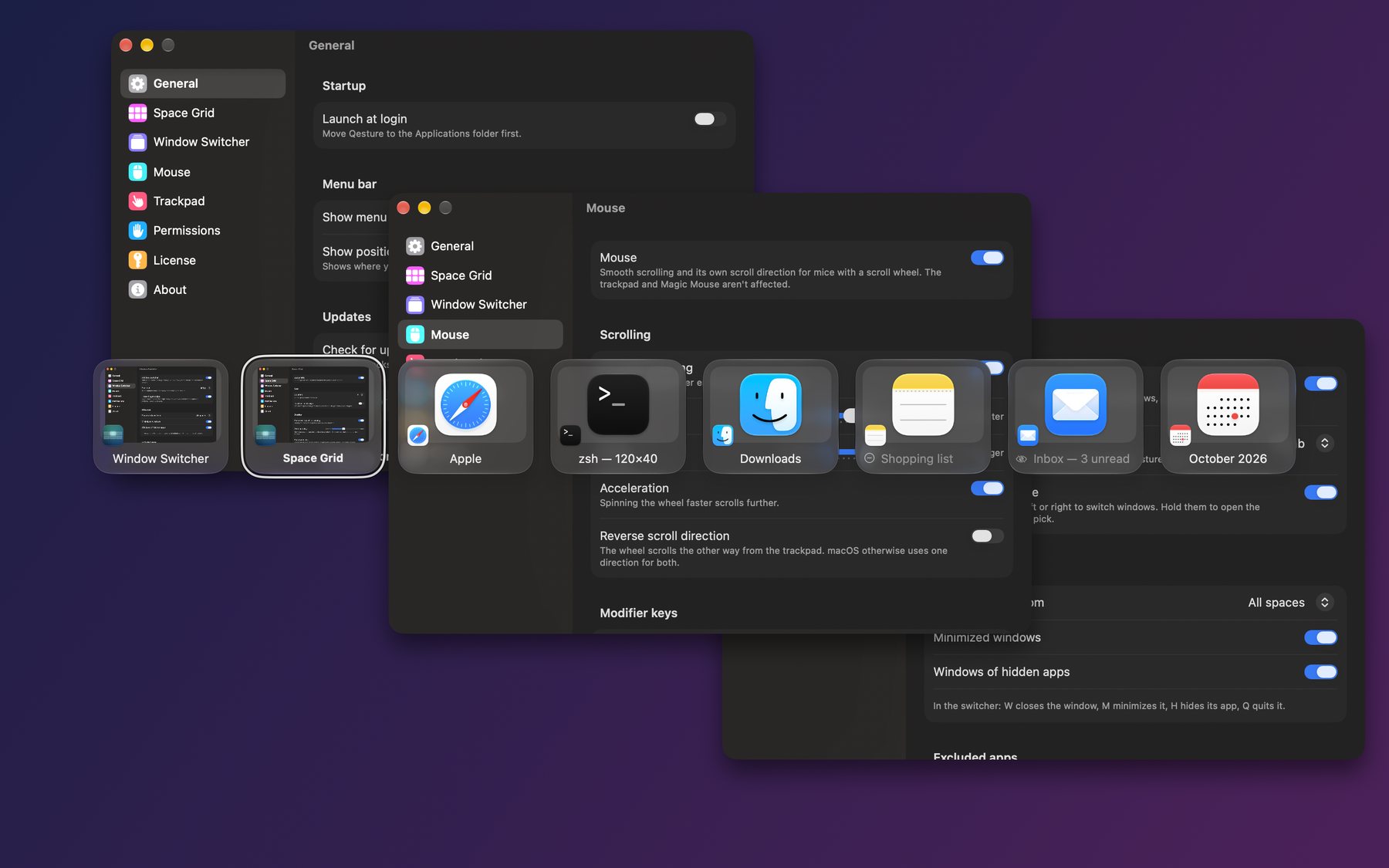
Qesture's Window Switcher shows every window from every space, most recent first, with previews. It uses ⌘ Tab, so there's nothing new to learn:
- Hold ⌘ and press Tab to go through your windows, most recent first. Let go of ⌘ to switch.
- While the switcher is open, press W to close a window, M to minimize it, H to hide its app, or Q to quit the app.
- Minimized windows and windows of hidden apps are in the list too. You can leave either out, show only windows from the current space, or exclude apps whose windows you never want to see there.
- Window tiles come in three sizes: Small, Medium and Large.
⌘ Tab replaces macOS's app switcher only while Qesture runs. If you'd rather keep the app switcher, set the Window Switcher to ⌥ Tab in Qesture's Settings. The switcher works once you allow Accessibility, and Screen Recording only adds window previews. macOS's own three-finger swipes and three-finger drag compete with the switcher's swipe, and Qesture's setup window shows what to change.
Switch windows with three fingers
On a trackpad, a quick three-finger swipe left or right switches straight to the next window without showing the panel. To pick a window, hold three fingers still until the switcher opens, slide to the window you want, and lift.
Switch windows with a mouse
Hold the middle mouse button, then click the right one to open the switcher. A right click advances one window, and releasing the middle button switches to the one you reached.
Questions
Does Qesture show windows from other desktops?
Yes. By default the switcher lists windows from all spaces. Choose “This space” in Settings → Window Switcher to see only the windows on the current desktop.
Can I get the app switcher back?
Yes. Set the Window Switcher to ⌥ Tab, turn it off, or quit Qesture, and ⌘ Tab switches apps again.