Mac Spaces in a grid: switch desktops faster
Published November 7, 2026 · Updated November 15, 2026 · By the Qesture team · macOS 26 and later
macOS keeps your desktops, called Spaces, in a single row. To get from the first desktop to the sixth, you swipe five times. Here are the ways to move between desktops faster in macOS, and how to put your Spaces in a grid so one swipe jumps a whole row.
Switching desktops in macOS
Swipes and arrow keys
Swipe left or right with the number of fingers set for swiping between full-screen apps in System Settings → Trackpad → More Gestures. On the keyboard, Control ← and Control → move one desktop at a time.
Mission Control
Open Mission Control with Control ↑ or a swipe up, and every desktop appears in a row across the top of the screen. Click one to go there, or click the + button to add a desktop.
A shortcut for each desktop
In System Settings → Keyboard → Keyboard Shortcuts → Mission Control, you can turn on “Switch to Desktop 1”, “Switch to Desktop 2” and so on, which use Control and a number. If the shortcut for a desktop is missing, add that desktop in Mission Control first.
Keep desktops in order
macOS can reorder your desktops by which one you used last. If you want Desktop 4 to always be in the same place, turn off “Automatically rearrange Spaces based on most recent use” in System Settings → Desktop & Dock, under Mission Control.
Less animation
With Reduce motion on in System Settings → Accessibility → Display, moving between desktops may fade instead of sliding.
Put Spaces in a grid with Qesture
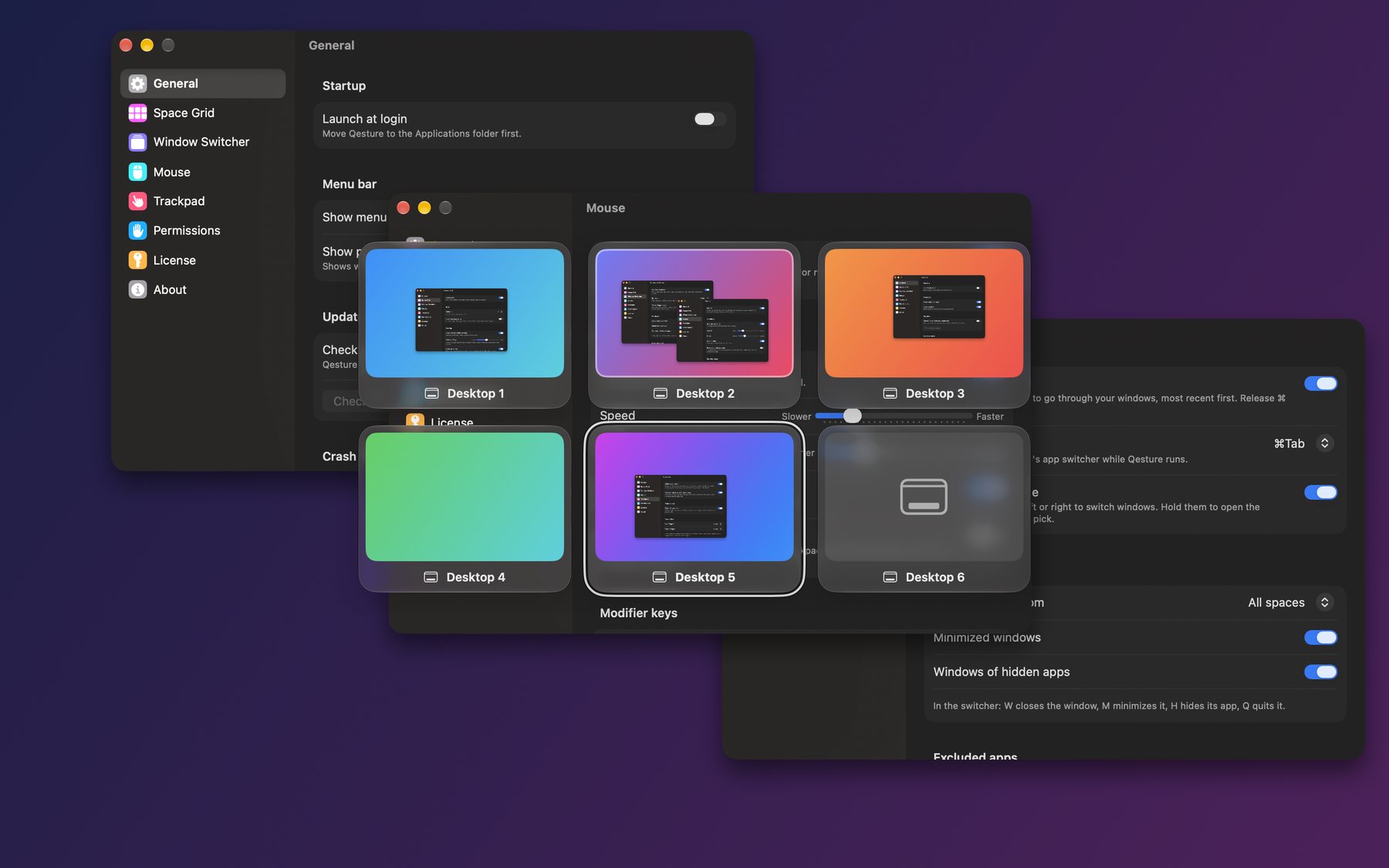
Qesture's Space Grid stacks your desktops in a grid. With six desktops and three columns, you get two rows of three:
- Swipe four fingers up or down to jump a whole row. Left and right stay macOS's own swipe between desktops.
- Hold four fingers still to bring up a glass overlay with previews of every desktop. Slide to the one you want and lift.
- Hold still over a crowded desktop while picking, and layouts for its windows appear above the grid. Slide up to one and lift to switch there and arrange its windows.
- With a mouse, hold the middle button and drag: left and right switch desktops, up and down move between rows. Hold the middle button still to pick from the overlay, unless you've given the middle button its own Hold action.
- The menu bar shows where you are in the grid as row·column, and Force Touch trackpads give a light tap as you pick a desktop.
Rows can be 2 to 6 desktops wide. Three is the default. With no more desktops than columns, the grid is a single row, so add desktops in Mission Control to get a second one.
Allow Accessibility when Qesture asks; Screen Recording isn't required; it adds desktop previews. Qesture can turn off “Automatically rearrange Spaces” for you, so the grid stays where you put it. macOS gives the four-finger swipes up and down to Mission Control and App Exposé, and Qesture asks whether Space Grid should take them instead. If it does and Mission Control is set to four fingers, set Mission Control to three in System Settings → Trackpad → More Gestures.
Questions
Does Mission Control show the grid too?
No. Mission Control still shows your desktops in one row. The grid is how Qesture's swipes, overlay and menu bar position see them.
Can I keep four-finger swipes up for Mission Control?
Yes. Turn off “Four fingers up and down move between rows” in Settings → Space Grid. The swipe goes back to Mission Control and App Exposé, and you can still hold four fingers to pick a desktop or use the middle mouse button.
Does swiping down go to the row below?
By default, four fingers down go to the row below. Turn on “Invert vertical swipe” if you'd rather the grid follow your fingers.