How to move and tile windows with trackpad gestures on a Mac
Published November 7, 2026 · Updated November 15, 2026 · By the Qesture team · macOS 26 and later
macOS can tile windows side by side, but on a trackpad that usually means dragging a window by its title bar to the edge of the screen, or opening a menu. Here's what's built in, and how to tile a window with a swipe and move it with three fingers.
Moving and tiling windows in macOS
Moving a window
Drag a window by its title bar. On a trackpad, that's a press and a slide, or a three-finger drag if you turn it on: in System Settings → Accessibility → Pointer Control → Trackpad Options, turn on dragging and choose three-finger drag. Either way, the pointer has to start on the title bar.
Tiling a window
macOS 26 has window tiling built in:
- Drag a window to the left or right edge of the screen to fill that half, or to a corner to fill a quarter. Drag it up to the menu bar to fill the screen.
- Hold the pointer over the green button in a window's corner for a menu of layouts.
- Use Window → Move & Resize in the menu bar. The keyboard shortcut for each layout is shown next to it.
You can change how tiling behaves, for example whether tiled windows have gaps between them, in System Settings → Desktop & Dock under Windows.
What macOS doesn't have is a trackpad gesture that tiles the window you're looking at.
Tile and move windows with Qesture
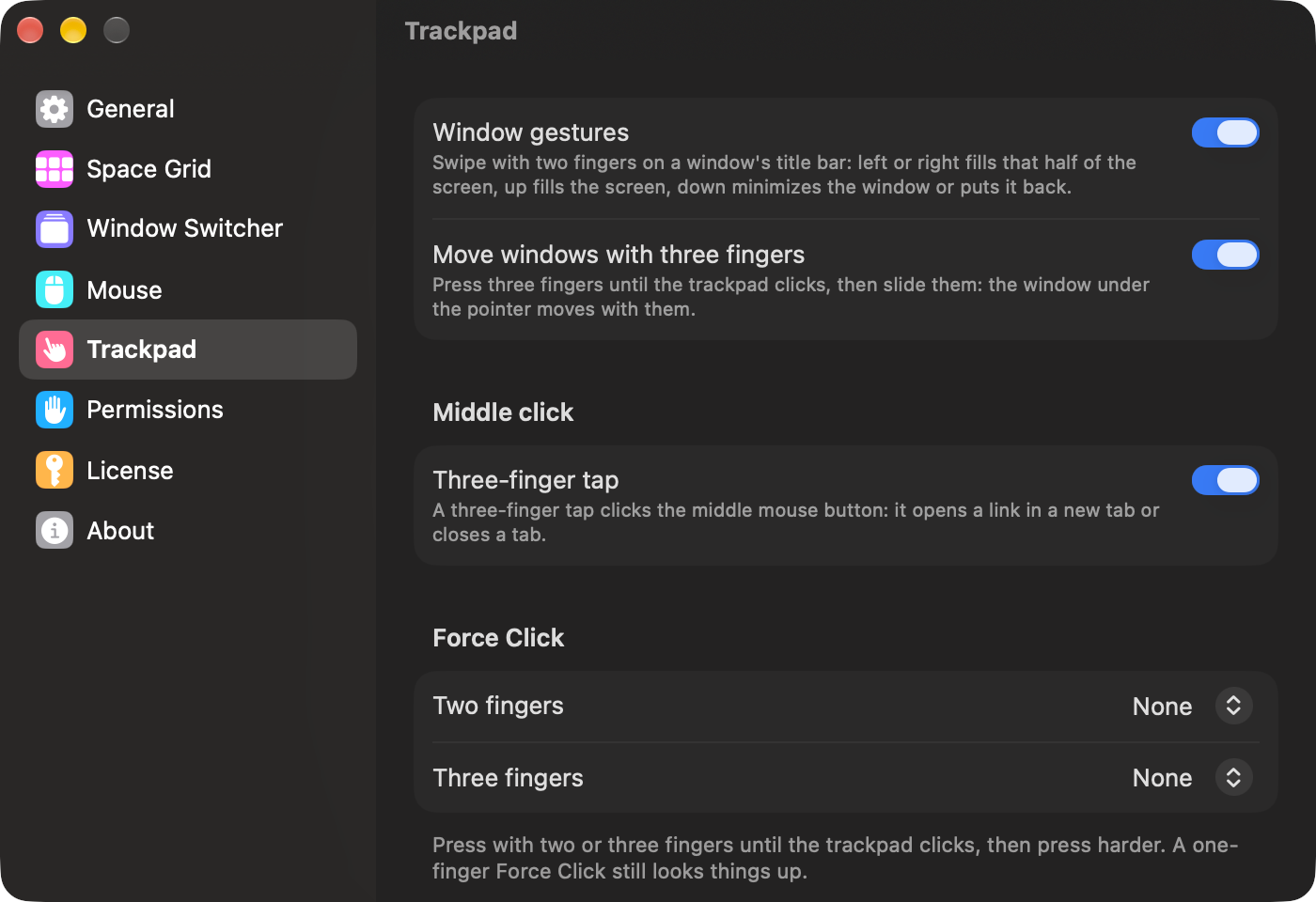
Swipe two fingers on a title bar to tile
Put the pointer on a window's title bar and swipe with two fingers:
- Left or right fills that half of the screen.
- Up fills the screen.
- Down puts a window you tiled this way back the way it was, as long as you haven't moved it since. Otherwise it minimizes the window.
Press three fingers to move a window
Press three fingers until the trackpad clicks, then slide them: the window under the pointer moves with them. The pointer can be anywhere on the window, so there's no title bar to aim for. Both are on from the start on the Trackpad page of Qesture's Settings, once you allow Accessibility.
Arrange a whole desktop at once
Qesture's Space Grid can also arrange the windows on a desktop. While you hold four fingers to pick a space, hold still on a desktop with several windows to see layouts above the grid. Choose one, lift, and Qesture switches there and arranges the windows. More about it in Mac Spaces in a grid.
Questions
Does macOS's own tiling still work?
Yes. The title bar swipes are an extra way to tile. Dragging to a screen edge, the green button menu and Window → Move & Resize work as before.
Does tiling need a Force Touch trackpad?
No. Tiling and moving windows work on any trackpad. Qesture's Force Click actions are the part that needs a Force Touch trackpad.
Does three-finger drag still work?
If you use Qesture's three-finger swipes to switch windows, three-finger drag has to be off, because it would catch those swipes as drags. Qesture's setup window tells you if it's on.