Smooth scrolling for a mouse on Mac, with its own scroll direction
Published November 7, 2026 · Updated November 15, 2026 · By the Qesture team · macOS 26 and later
Connect a mouse with a scroll wheel to a Mac and two things stand out. The page moves in steps, one jump per notch of the wheel, instead of gliding the way it does on a trackpad. And if you flip the scroll direction for the mouse, the trackpad flips with it. Here's what macOS lets you change, and how to get smooth scrolling and a separate direction for the mouse.
What macOS offers
One scroll direction for the mouse and the trackpad
System Settings → Mouse has a Natural scrolling switch, and System Settings → Trackpad → Scroll & Zoom has another. macOS uses one natural-scrolling setting for both, so changing it for the mouse changes it for the trackpad. So macOS has no switch for keeping natural scrolling on the trackpad while the mouse wheel scrolls the classic way.
Scrolling speed
System Settings → Accessibility → Pointer Control → Mouse Options has a slider for how fast the wheel scrolls. That changes how far each notch moves the page, not the stepped feel of a wheel.
Scrolling sideways
In most apps, holding ⇧ Shift while you turn the wheel scrolls left and right instead of up and down.
Smooth scrolling and a separate direction with Qesture
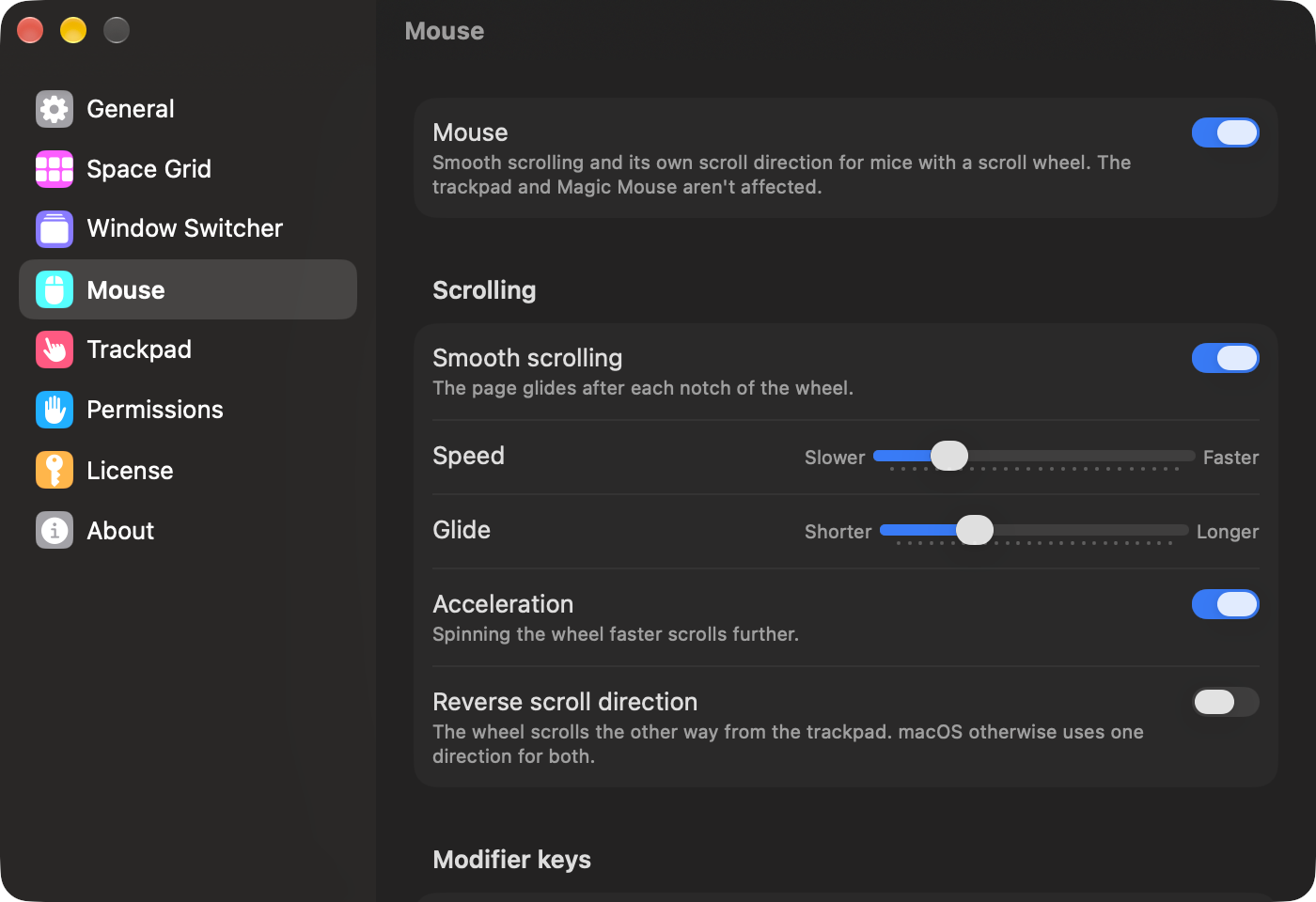
Qesture's Mouse settings are for mice with a scroll wheel. The trackpad and Magic Mouse aren't affected. Smooth scrolling is on from the start; Qesture only needs the Accessibility access it asks for when it first opens.
- Smooth scrolling. The page glides after each notch of the wheel. The Speed slider sets how far it goes and the Glide slider sets how long it keeps moving.
- Acceleration. Spinning the wheel faster scrolls further. It's on by default.
- Reverse scroll direction. The wheel scrolls the other way from the trackpad. Leave Natural scrolling the way you like it on the trackpad and turn this on to flip the mouse alone. It's off by default.
- Modifier keys. Hold a key while you scroll: ⌥ Option for precise scrolling and ⇧ Shift to scroll sideways. Fast scrolling has no key until you pick one: Control, Option or Command. Each key can be changed or turned off.
Questions
Does this change how my trackpad scrolls?
No. Qesture's scrolling options apply to mice with a scroll wheel. The trackpad and Magic Mouse keep scrolling the way macOS sets them up.
Can I keep natural scrolling on the trackpad but not on the mouse?
Yes. Leave Natural scrolling on in System Settings and turn on Reverse scroll direction in Qesture's Mouse settings. The wheel then scrolls the other way from the trackpad.
Can the extra mouse buttons do something too?
Yes. The middle button and buttons 4 and 5 can each run actions on a click, a double click or a hold. See middle click and mouse side-button actions.